
Step 1
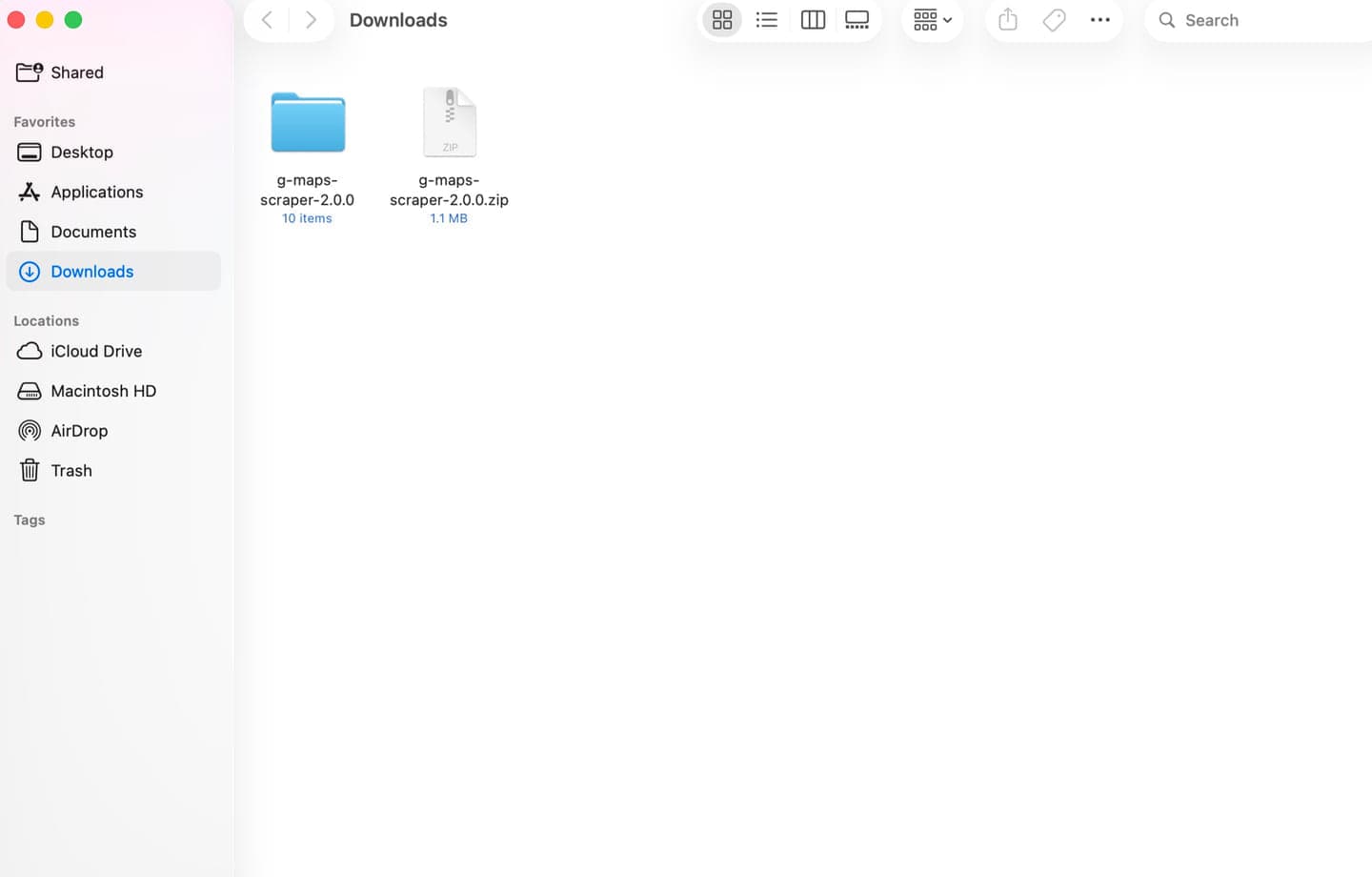
Download and extract the ZIP
Download the extension package from the CDN, then unzip it in Downloads or another folder you can keep.
You should end up with g-maps-scraper-2.1.0.zip and an extracted g-maps-scraper-2.1.0 folder.
Download G Maps Scraper - Google Maps Extractor, load it through Chrome Developer mode, and pin it so your Google Maps extraction workflow is ready to use.

These steps use the ZIP package from the CDN and Chrome's built-in Load unpacked workflow.
Download the extension package from the CDN, then unzip it in Downloads or another folder you can keep.
You should end up with g-maps-scraper-2.1.0.zip and an extracted g-maps-scraper-2.1.0 folder.
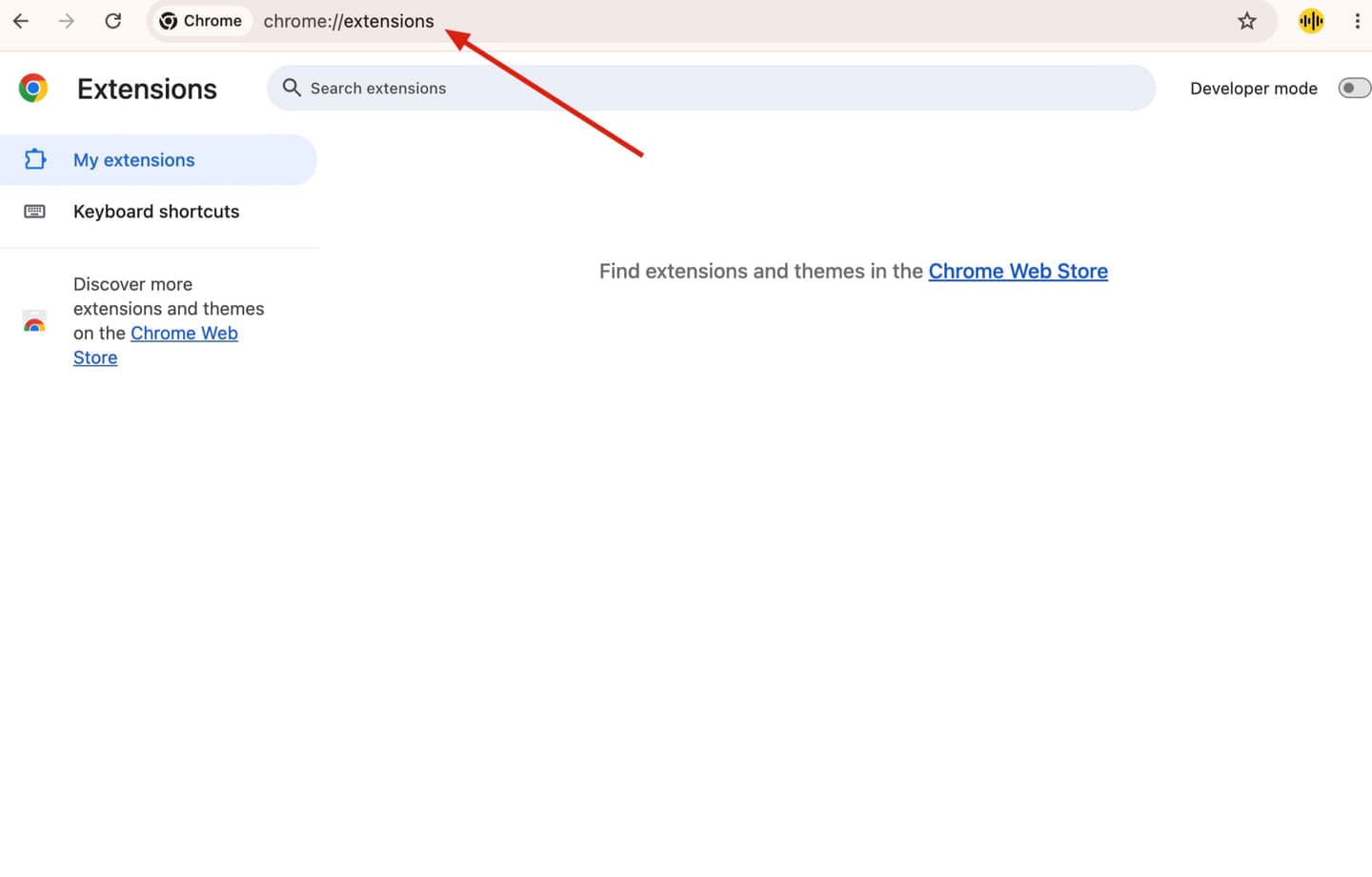
In Google Chrome, open a new tab and navigate to chrome://extensions.
This page is where Chrome lets you manage, enable, remove, and manually load extensions.
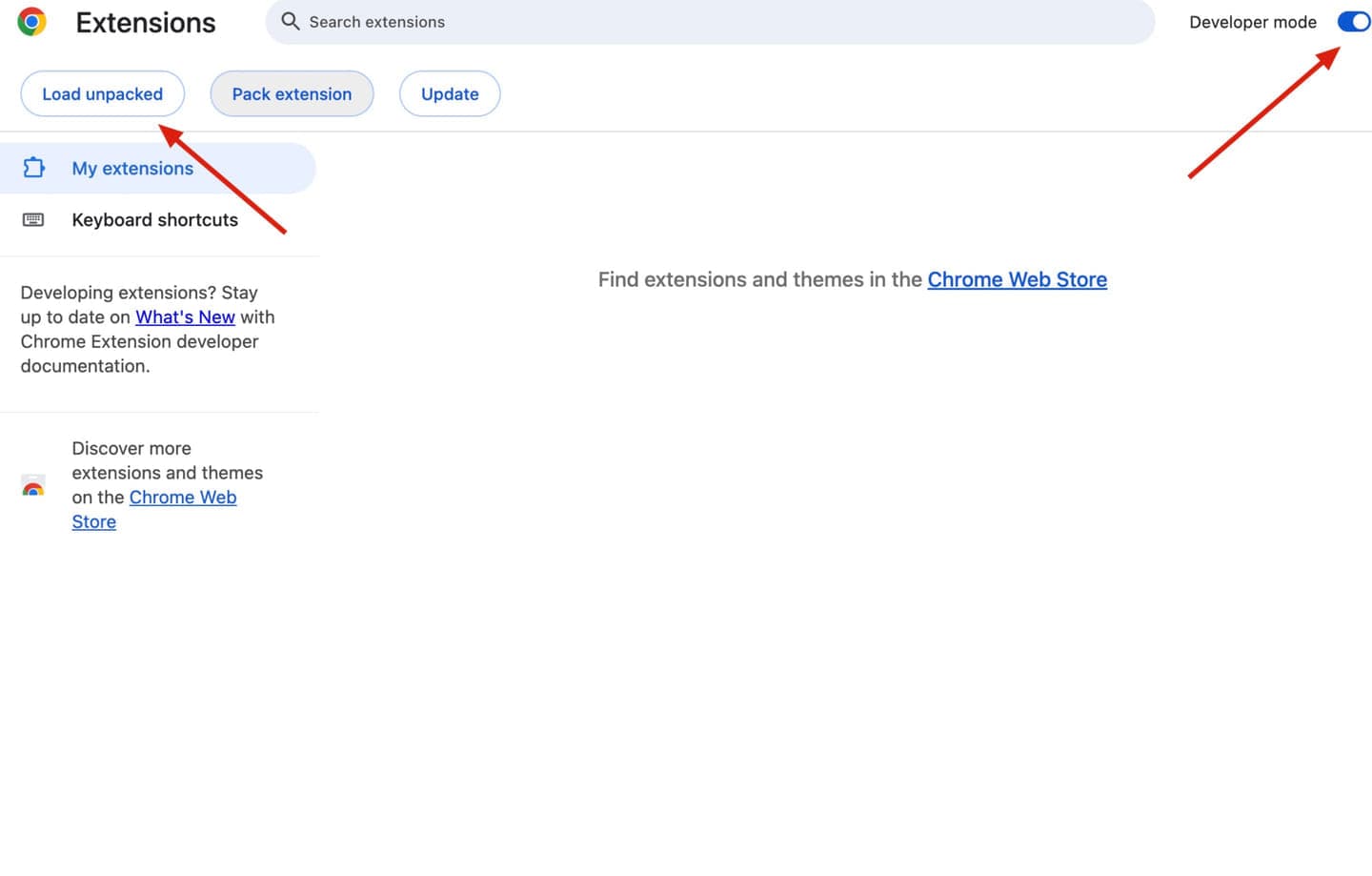
Turn on Developer mode in the top-right corner, then click Load unpacked.
Developer mode exposes the manual install controls needed for a local extension folder.
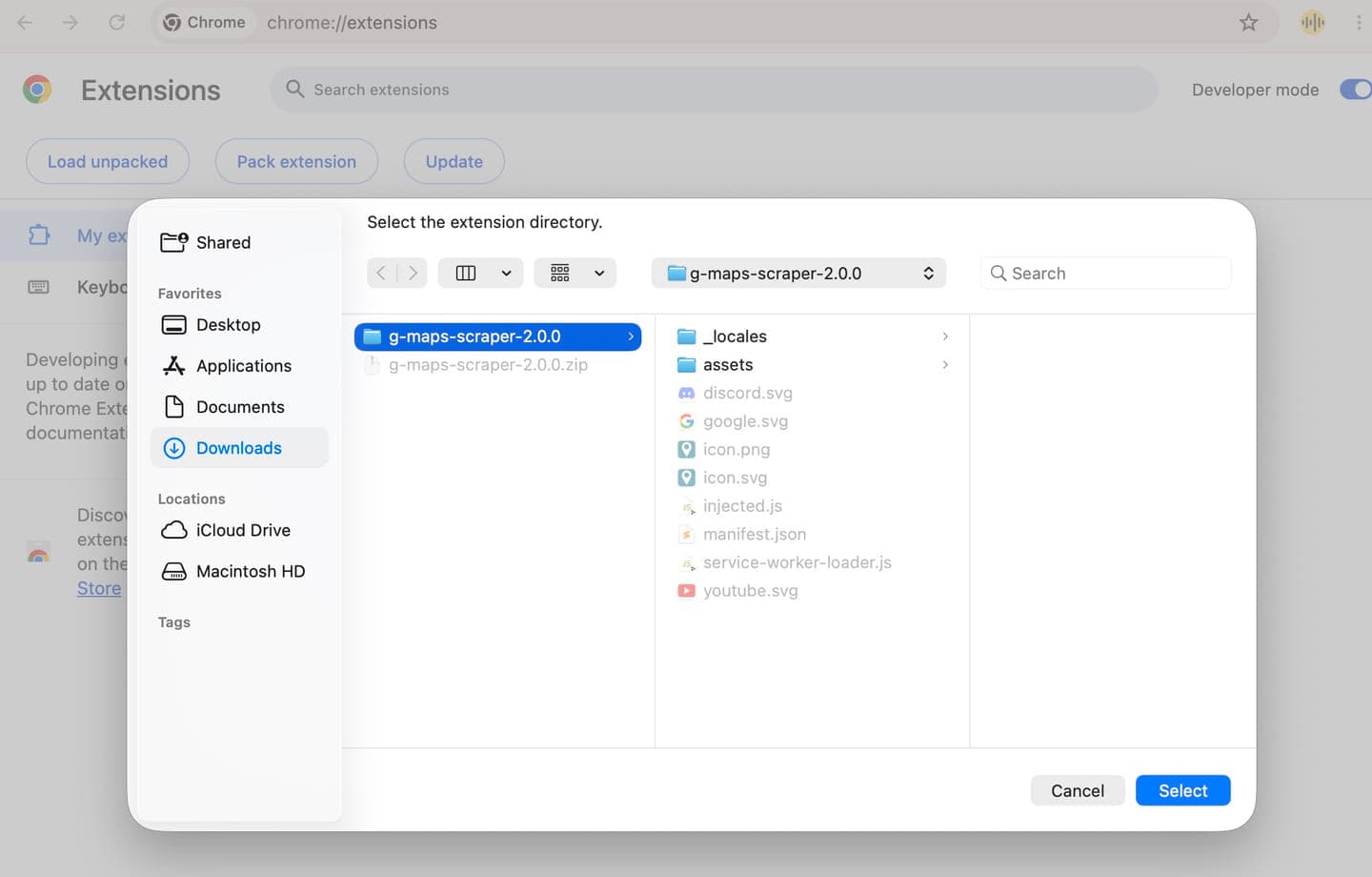
Choose the extracted G Maps Scraper folder when Chrome opens the directory picker.
Select g-maps-scraper-2.1.0. If you select the ZIP file, Chrome will not load the extension.
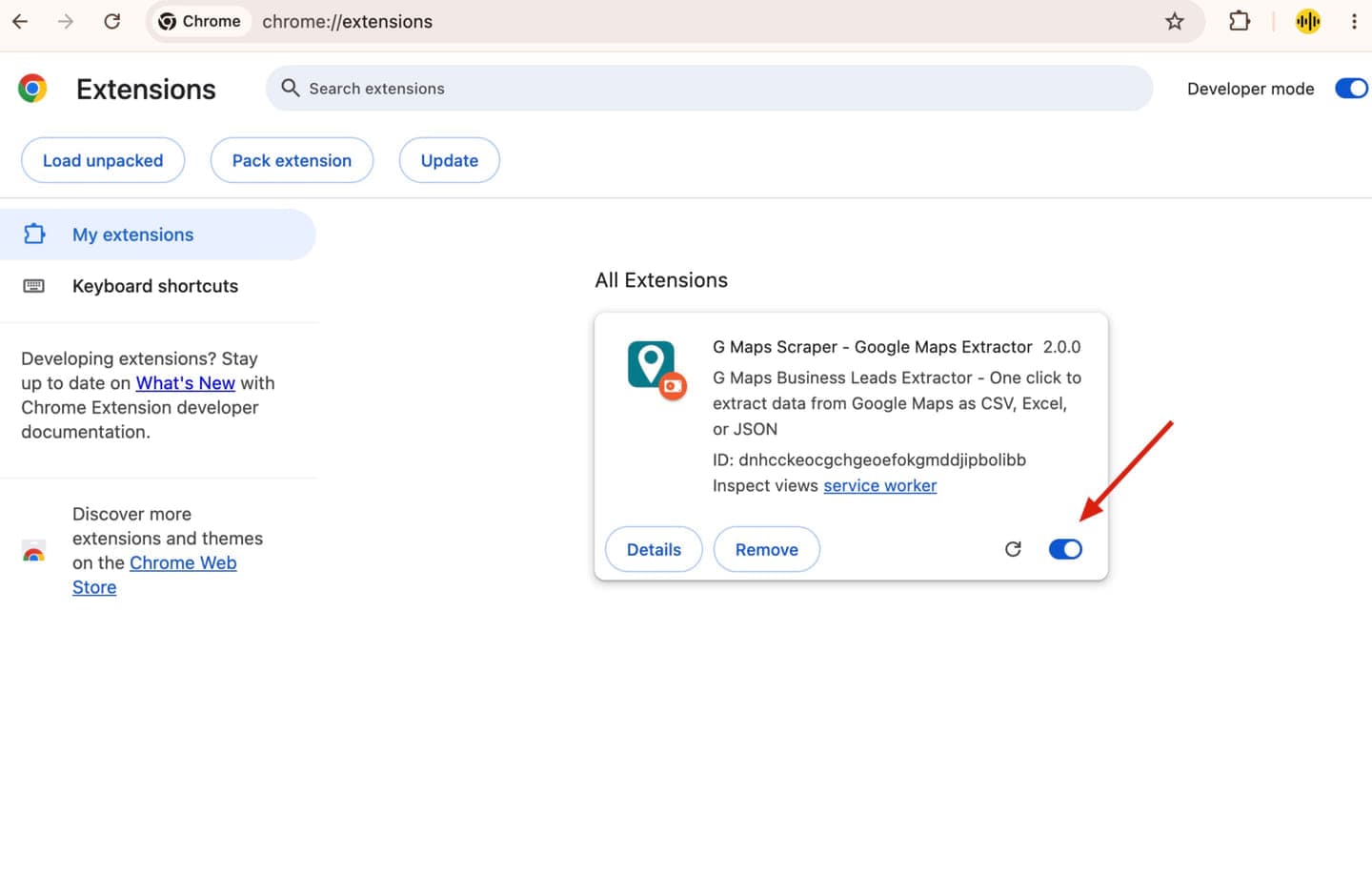
Chrome will add a new extension card for G Maps Scraper with the extension toggle enabled.
The card should show G Maps Scraper - Google Maps Extractor and version 2.1.0.
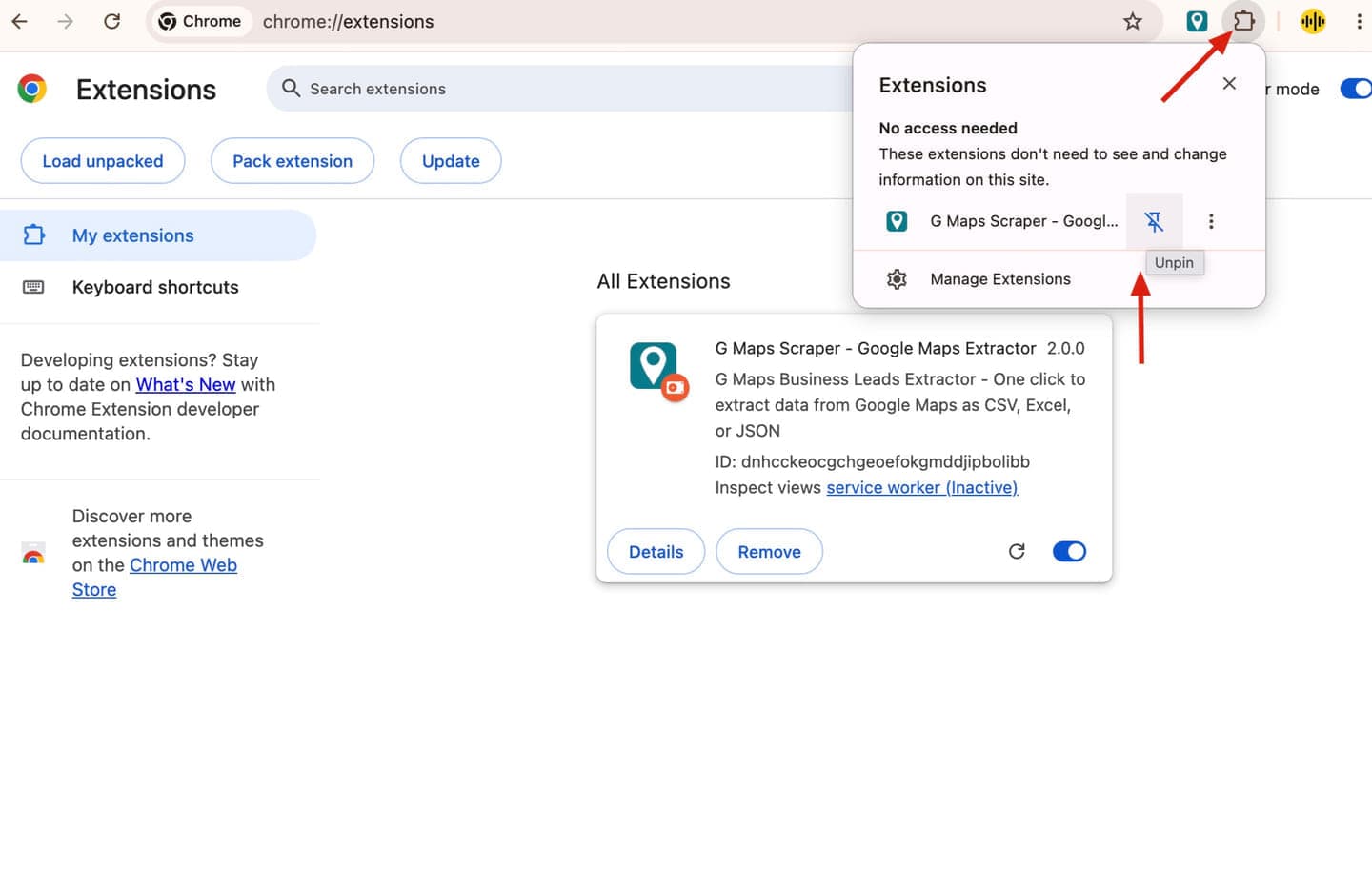
Open the puzzle icon in Chrome's toolbar, pin G Maps Scraper, and launch it from a Google Maps page.
Once pinned, the extension stays one click away for lead extraction and exports.
Manually installed Chrome extensions depend on the local folder you selected. Keeping it in place helps Chrome load the extension every time you start the browser.
Review the Chrome prompt and approve it to finish the local install.
If the source folder was moved or deleted, load the extracted folder again from chrome://extensions.
Download the newest ZIP, extract it, then use the refresh button on the same extension card.